EXIF Metadata Viewer
Open an image and read the hidden fields it chose to keep: camera details, editing software, dates, and occasional generator notes.
Someone sends you an image and says, “This looks AI.” The pixels may not settle the argument, but the file sometimes says more than the picture does. An exif viewer lets you inspect the quiet fields that travel inside many images: the camera, the export app, the time written by the device, and sometimes text left by a generator or editing workflow.
This check runs in your browser. The file is read on your device, and the tool shows the metadata it can parse from that local copy. That matters if you are checking unpublished work, client material, classroom submissions, or anything you would rather not upload to a random service.
The goal is not to shame a tool or catch a person with a single field. The goal is to see whether the file gives you a concrete lead worth following.
Drop a photo to read hidden metadata
Use this exif viewer to check exif data, camera fields, editing software, copyright text, and generator-like labels. The file stays on your device.
You can also drop a file on this area.
The check runs here in your browser. Your file is never uploaded.
What image metadata can reveal.
Metadata is not one single label. It is a loose collection of fields that different cameras, phones, editors, and generators may write into a file. A normal photo may include camera make and model. An edited image may name the software that saved it. A file from a generation workflow may include a tool name, a workflow label, or prompt-like text if the software chose to embed it.
The software field is often the first place to look. Sometimes it is dull, like a common photo editor. Sometimes it is more revealing. A field can name something like “Stable Diffusion WebUI” if that exact exporter wrote the value and the value survived. That does not prove every pixel’s history, but it is a real clue you can quote carefully.
Dates need caution too. A timestamp might be the camera capture time, an edit time, an export time, or a value copied from an earlier file. Treat it as a lead, not a sworn statement. If the date conflicts with the story around the image, ask for the original file or a source link before drawing a conclusion.
Location fields deserve the same restraint. If GPS information appears, handle it carefully and consider whether you need to share it at all. Provenance work should not turn into unnecessary exposure of private details.
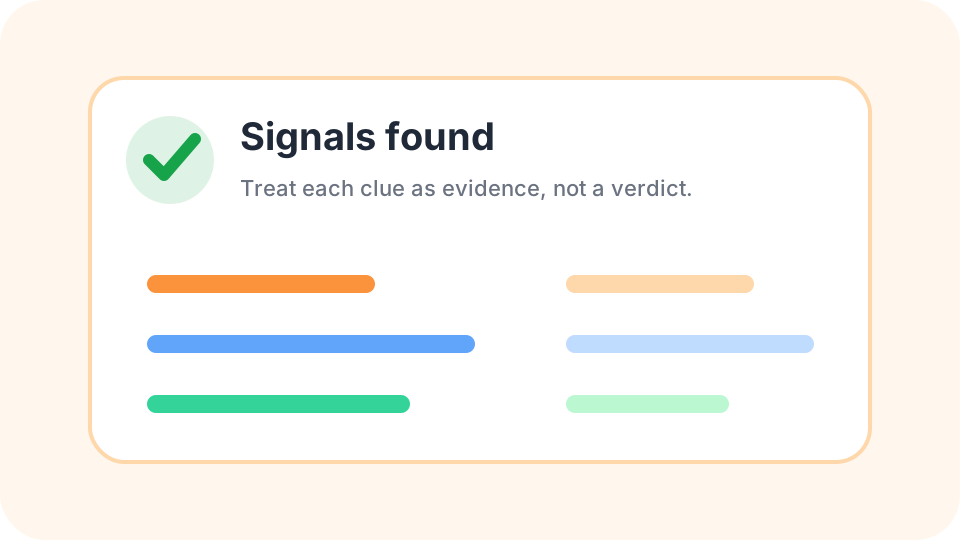
How to use this photo metadata checker.
Drop one image into the tool and scan the plain-English rows. Look first for camera make, model, software, author, copyright, dates, and location-related entries. Then read the full field list if you need more context. The useful phrase is not “AI” or “not AI.” It is “this file carries this field.”
If you need a signed provenance record rather than ordinary metadata, run the same file through the Content Credentials checker. If your question is about Google’s watermarking system, read the SynthID Detector guide, because only Google’s official tool can read SynthID.
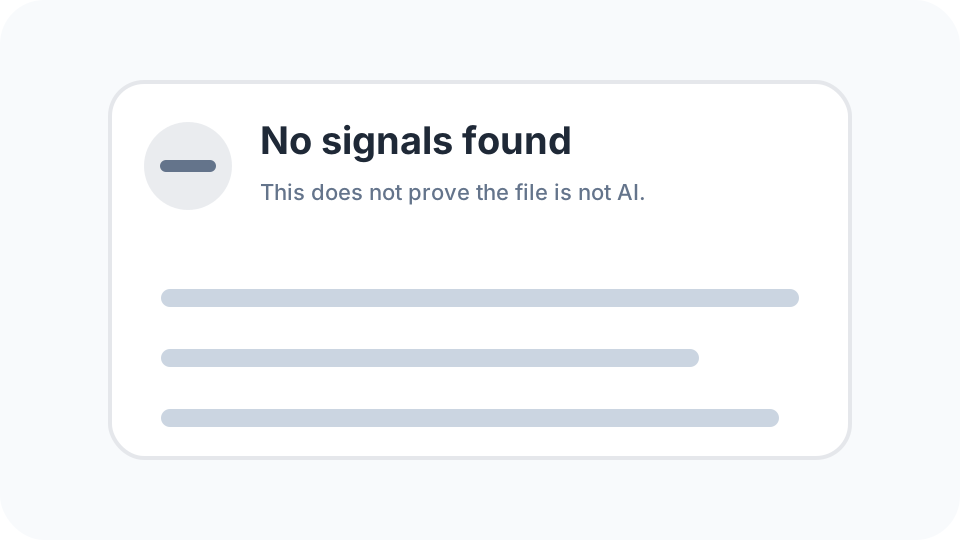
Why a blank result is common.
Many perfectly ordinary image copies have little or no metadata. Social networks often remove it. Messaging apps may compress the image and write a new file. Screenshots usually describe the screenshot device or nothing useful at all. A creator may export with privacy settings that strip location and camera details.
That is why “no metadata” should not become “not AI.” It should become a narrower sentence: this copy did not include the fields checked here. If the stakes are high, ask for the original file, compare it with other versions, and use source context instead of leaning on one empty report.
Prompts, generators, and misleading labels.
Some generation tools store prompts, seeds, model labels, workflow names, or editor names in metadata. Some do not. Some users strip those fields before sharing. Some editing tools preserve an old software label even after later changes. A label is still useful, but it needs the right wording.
A careful report might say, “The metadata names an image-generation workflow,” or “The software field names an editor often used after generation.” It should not say, “This proves the whole image was made by AI,” unless you have more evidence than metadata alone can provide.
When EXIF is the wrong tool.
Use this page to check exif data and related image fields. Do not use it as a universal detector. It cannot read hidden proprietary watermarks. It cannot recover metadata that has been removed. It cannot decide authorship from pixels.
The best use is practical and limited: inspect what the file carries, write down the exact clues, and avoid filling the gaps with confidence. That is slower than a fake verdict, but it is the kind of answer you can defend later.
EXIF metadata questions
Can EXIF show the name of an AI generator?
Sometimes. If the exporting tool wrote its name or workflow text into the file and that data survived, the viewer may show it.
Does camera metadata prove the image is a real photograph?
No. Metadata can be copied, edited, preserved through compositing, or left over from an earlier stage of a file.
Why does a social media download show almost nothing?
Many platforms rewrite images for privacy, size, or speed, and that process often removes the original hidden fields.
Can this viewer read location data?
It can show location-related fields when they are present in the file, but many devices and apps remove them by default.
Is the image uploaded to your server?
No. This page reads the selected file locally in your browser so the metadata check can happen on your device.
If the metadata looks empty, keep the wording modest: this copy did not carry those fields. For signed provenance, try the C2PA checker next.